
Digital Planning Basics
How to Import your Digital Planner into GoodNotes
Feb
Follow us on
Estimated reading time: 10 minutes
Learn how to import digital planners into GoodNotes with this easy and brief tutorial on importing documents into GoodNotes. Start using your digital bead planners today, even if you are a total beginner!
GoodNotes works on your IPad and your Mac in almost the same way.
Yep, you can use your Mac and GoodNotes with all Beading Treasures planners and patterns.
Read on!
GoodNotes in Brief
Why use GoodNotes?
Beading Treasures is in no way affiliated with GoodNotes, we love it and it is the app that we use. It also won the IPad app of the year award for 2022.
GoodNotes is an annotating app that, when using the IPad, allows you to plan with an Apple Pencil, just like using a traditional paper planner. But so much better!
You can still use GoodNotes on your Mac but type in your info instead of writing in, you could also use Xodo on Android devices.
You can download GoodNotes for free from the Appstore to try it out the only difference is that you will be limited to importing only 3 PDF files.
And if you haven’t yet experienced our Digital Beading Planners and want a sneak preview of what they are like, download a Sample Notebook and test it out.
Importing a Document into GoodNotes
Although it can seem overwhelming at first when you start digital planning, it is very easy to get started.
The steps are almost the same for the iPad and the Mac. Bear in mind that it can be any PDF document, such as a pattern file, and you will import it into GoodNotes exactly the same way.
Keep reading and I will show you just how easy it is to add your Digital Planner or Patterns to GoodNotes.
How to Import your Digital Planner into GoodNotes
My suggestion is to try both these methods and then stick to the one you find the easiest and the quickest.
Open a File from inside the GoodNotes App
This is for when you have the GoodNotes app already open.
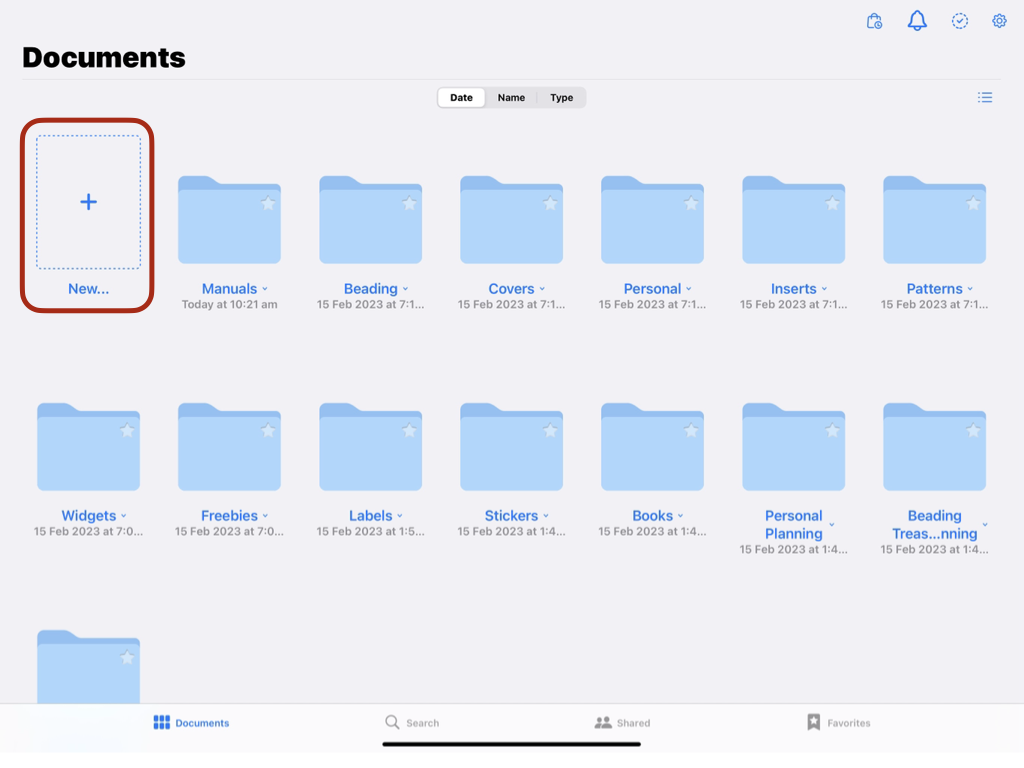
Importing a document into the GoodNotes app.
- Click on the empty document with the plus (+) sign in the middle.
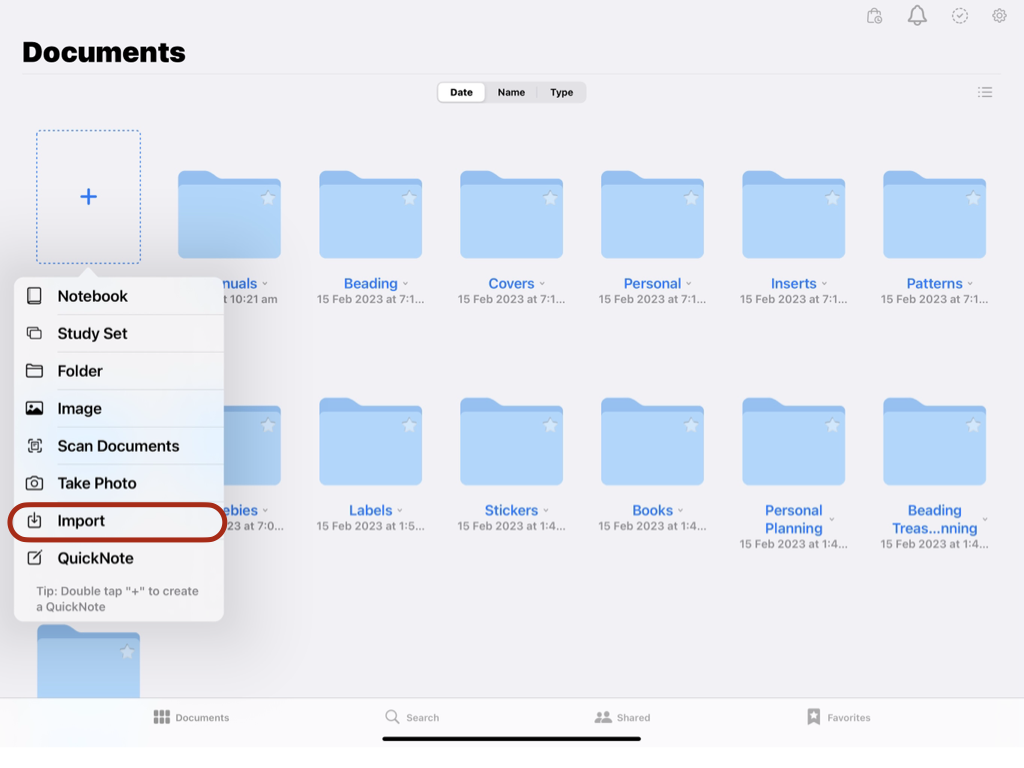
You should be presented with a drop-down menu with various options to choose from.

- Click on the “Import” menu option
A window will open.
- Locate the document you wish to import into GoodNotes
It can be stored in the cloud or on your device.
- Click on your located file and it will open inside GoodNotes.
- File opened within GoodNotes
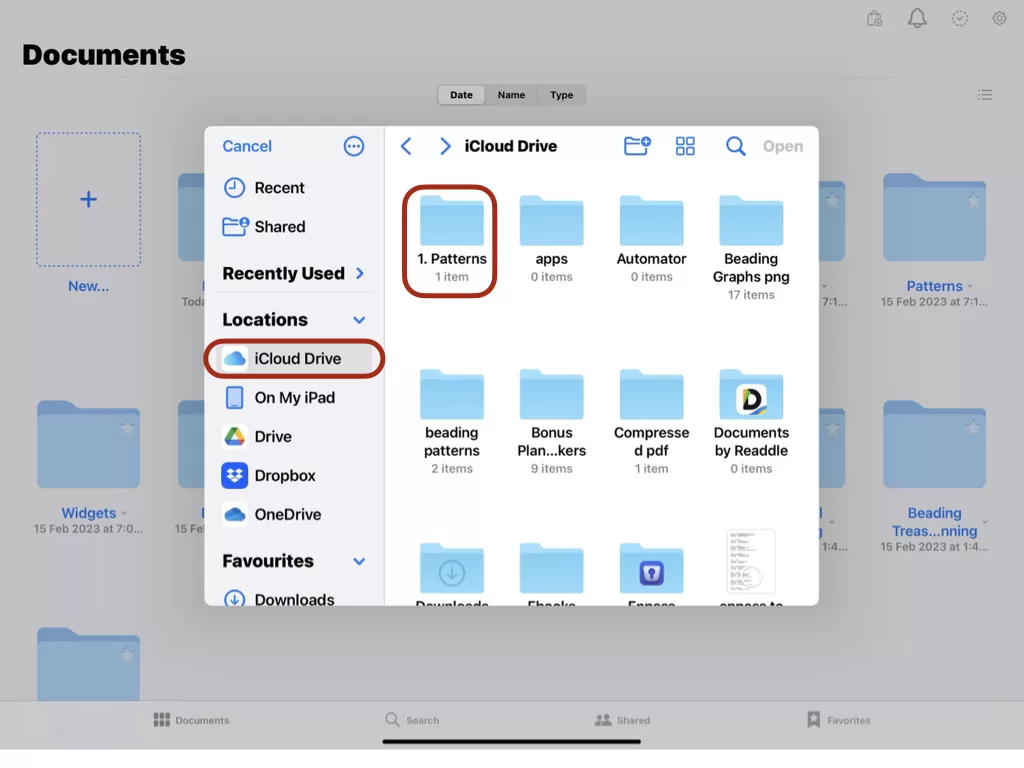
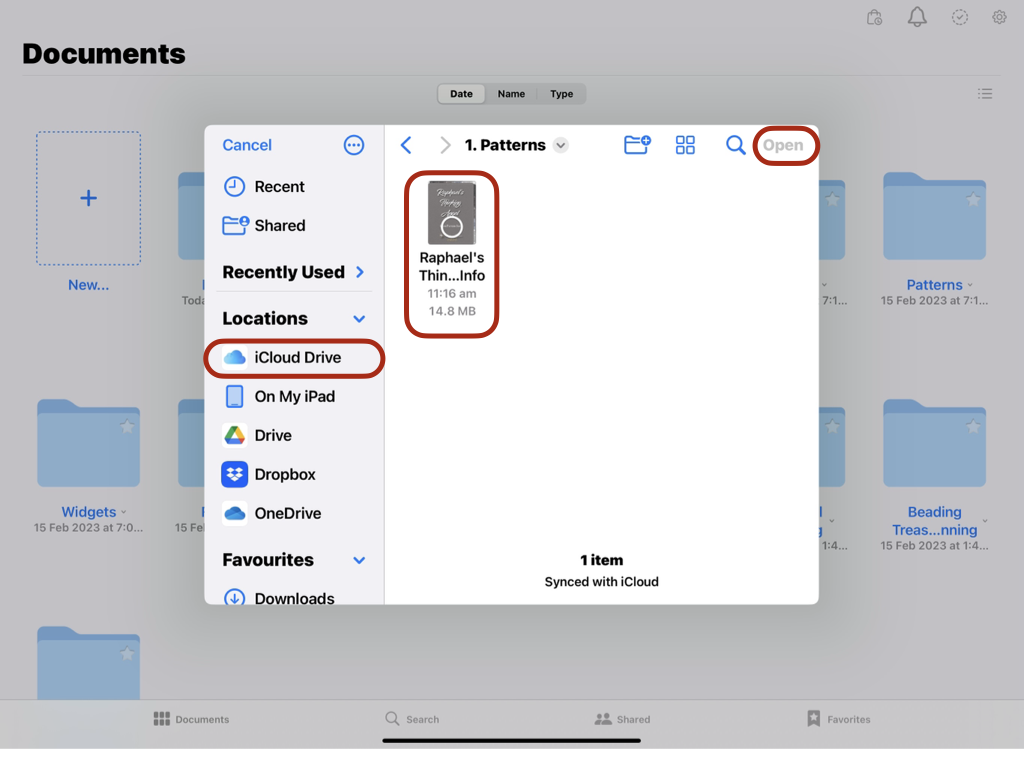
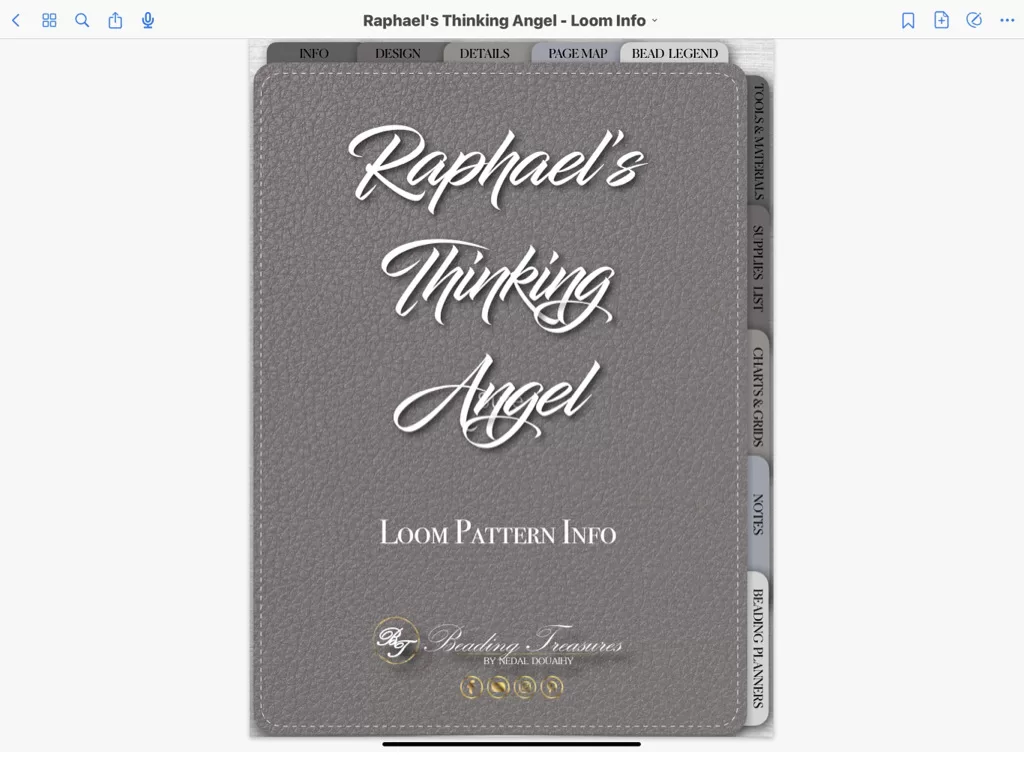
Open a File from a folder
That’s it.
Those are the 2 easy ways to import your digital planning documents into GoodNotes.
Now the fun begins!
If you enjoyed this post…
You might also like to read these posts too:
lATEST POSTS

Best Thread Color to Use with your Patterns
What is the best thread and thread color to use for weaving your bead tapestry?
Dec

Best Way to Weigh Your Beads
How best to go about weighing the beads in your stash before purchasing more for[...]
Dec

How BT is Helping You to Weave Large Bead Loom Tapestries
All things beading, bead looming large tapestries and digital planning for beaders.
Mar

Hi there! I’m Nedal.
I created Beading Treasures to make information about beading large tapestries more accessible, and in doing so encouraging creating of this amazing art form.
Weaving big can seem intimidating but by using some techniques it is totally doable, no more than that it is really enjoyable!
If you’ve found this blog helpful, please support me by choosing the affiliate products on my blog and following me on my social platforms.
Don’t forget to check out the shop.
Thank you!
Nedal Douaihy, Artist & Founder